FoxMCP
io.github.ThinkerYzu/foxmcp · 38 stars · Python · MIT
MCP server Let your AI assistant use your real, logged-in Firefox: tabs, pages, bookmarks, history.
Install
The repo has no one-line install. Follow its README.
Published as
- PyPI
foxmcpstdio
From the server's entry in the official MCP Registry.
Files
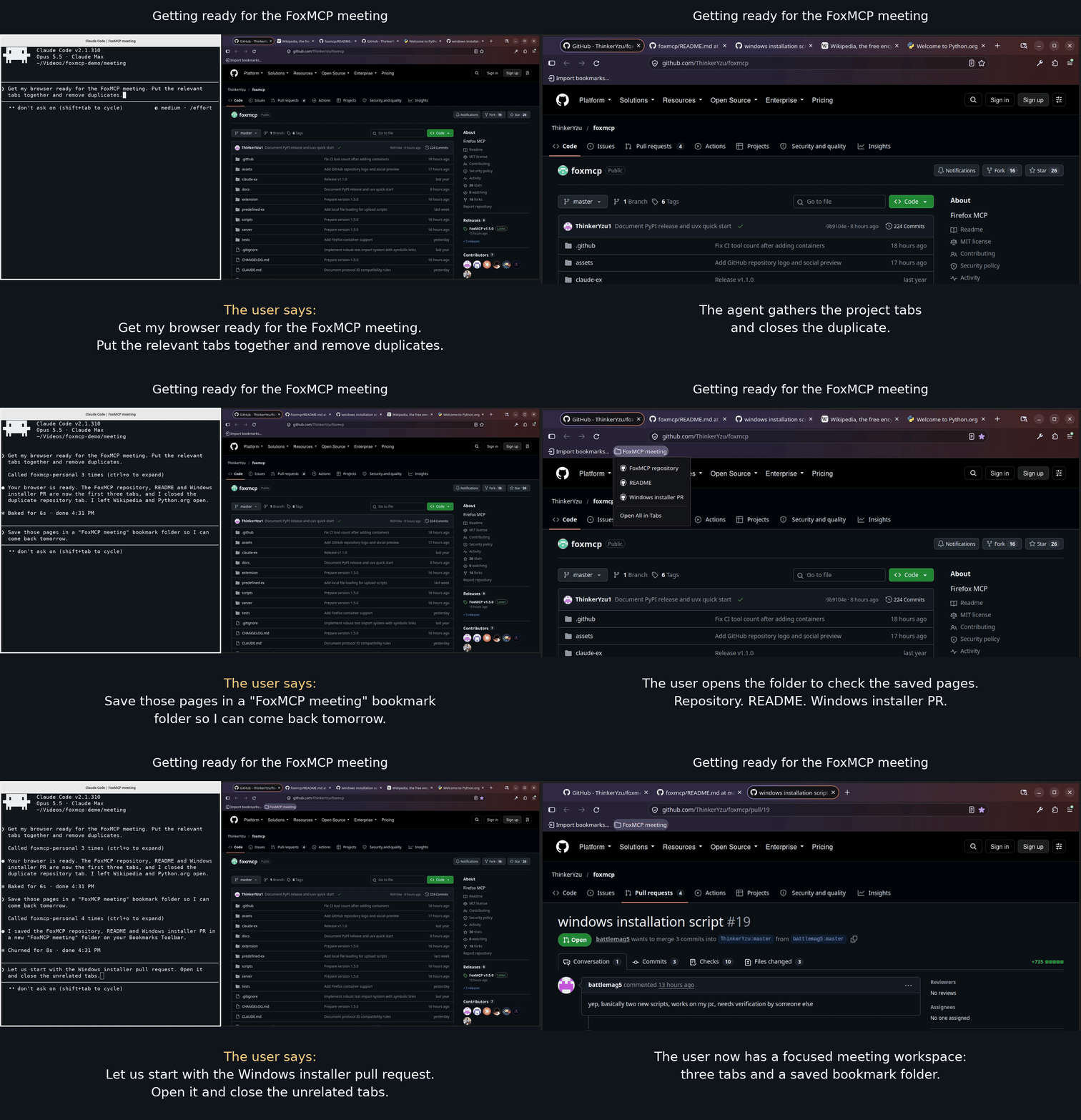
Prepare for a FoxMCP meeting with Claude Code: organize tabs, save the project pages, and clear away distractions.

FoxMCP — Firefox Browser Automation via MCP
Connect an MCP-compatible AI assistant to Firefox. Manage tabs and windows, read pages, upload local files, organize bookmarks, search history, and inspect network requests.
FoxMCP has two parts: a Firefox extension and a local Python server. Your AI client talks to the server, which sends commands to the extension.
Privacy: Connected AI clients can access your browser data and run page scripts. Use trusted clients and consider a dedicated Firefox profile. See SECURITY.md for the threat model.
Version 1.7.0 is published on PyPI and GitHub. The 1.7.0 extension update is awaiting Mozilla review; Firefox Add-ons currently serves 1.6.0. See release status.
Upgrading: Update the server and extension together, restart shared workers,
and refresh your client's tool schemas. Call profiles_list and pass its integer
profile_id to every browser tool, even with one profile connected. Rediscover
targets after reconnection. See release notes.
FoxMCP or firefox-devtools-mcp?
Both let an AI agent use Firefox. They suit different jobs.
Use FoxMCP to work in your own browser. It is an extension in the Firefox you already run, so the agent sees your open tabs, logged-in sites, bookmarks, history, and containers. Nothing needs a restart, and several agents can share the same Firefox.
Use firefox-devtools-mcp to test or debug a web page. It starts its own Firefox, so the browser is clean and disposable. It offers console, network, debugger, and profiler tools, and it works with Firefox for Android.
| FoxMCP | firefox-devtools-mcp | |
|---|---|---|
| Browser | The Firefox you already use | Its own instance, started for the agent |
| Logins and cookies | Yours | Only what its own profile holds |
| Several agents at once | Yes, in one Firefox | One at a time per Firefox |
| Setup | Add the extension, then uvx foxmcp --stdio |
npx @mozilla/firefox-devtools-mcp |
| Best at | Tabs, windows, bookmarks, history, containers, several profiles | Console, network, debugger, profiler, Android |
firefox-devtools-mcp can also attach to a Firefox that is already running
(--connect-existing), but only one started with special remote-control flags.
Plain Firefox needs a restart, or a second profile, first.
Sharing Firefox between agents. Start each client with
uvx foxmcp --stdio --single-instance so they share one connection. FoxMCP
does not lock tabs, so give each agent its own window to keep them from
stepping on each other.
Mind the access. In your real session, a connected AI client can reach whatever you can. Use a trusted client, consider a dedicated Firefox profile, and read SECURITY.md.
Quick start
You need Firefox, an MCP client, and
uv.
Your client starts FoxMCP with uvx foxmcp --stdio; uv manages the Python
environment and downloads the package automatically. FoxMCP requires Python
3.10+.
1. Install the Firefox extension
Open FoxMCP on Firefox Add-ons and click Add to Firefox.
Use matching server and extension versions. Click the FoxMCP toolbar icon to see a mismatch warning with both versions inside the popup. No automatic dialog or notification opens. The server also logs a warning. Release-version differences are advisory when protocol IDs match; incompatible protocol IDs prevent the browser connection. Mozilla review can delay the Add-ons version after a GitHub release; to try a version awaiting approval, use the temporary add-on instructions.
2. Connect your AI client
For Claude Code:
claude mcp add foxmcp -- uvx foxmcp --stdio
For Codex:
codex mcp add foxmcp -- uvx foxmcp --stdio
For another MCP client, add a stdio server with command uvx and arguments
["foxmcp", "--stdio"].
Open your AI client so it starts the server. Click the FoxMCP toolbar icon in Firefox and check that it shows a connected status. The extension connects on WebSocket port 8765. If the first browser call arrives before Firefox reconnects, retry it.
For multiple clients or chats, add --single-instance after --stdio to share
one browser connection. See stdio setup.
The packaged command includes and enables the example scripts. An explicit
FOXMCP_EXT_SCRIPTS overrides them; an empty value disables scripts. To match a
particular extension release, use uvx --from foxmcp==VERSION foxmcp --stdio,
replacing VERSION with that release's version.
3. Try it
Ask your assistant to discover profiles and choose the intended one before performing browser actions. For example:
List the connected Firefox profiles and their windows/tabs.
Use the profile named Personal for the following task. If the name is ambiguous,
show me the candidates first.
List all open Firefox tabs in that profile.
Open https://example.org in a new tab.
Get the text from the current page.
Take a screenshot of the current tab.
To target a particular tab, right-click it in Firefox's tab bar and choose
Tab ID = … (click to copy). Paste the copied tab_id = … into your request.
Tab IDs are local to their profile. The copied tab ID does not identify its
profile; give the assistant that context too. Rediscover after Firefox restarts.
What you can do
| Area | Capabilities |
|---|---|
| Profiles | Discover connected Firefox profiles and address browser calls explicitly |
| Tabs and groups | List, open, close, switch, reorder, move between windows, group and ungroup; take screenshots |
| Windows | Create, close, focus, resize, position, minimize and maximize |
| Page content | Read text or HTML, execute JavaScript, run predefined scripts, load local files for uploads |
| Navigation | Go to a URL, go back or forward, reload |
| Bookmarks | List, search, create, update, move and delete bookmarks and folders |
| History | Search, list recent visits and delete entries |
| Network | Monitor requests by URL pattern; inspect headers and captured text response bodies |
Native tab groups require Firefox 139+. Local file uploads use files readable by the Python server; see loading local files. See the API reference for tool names and parameters.
Other setup options
Install from GitHub release archives
The GitHub installers create a local installation directory. On Linux/macOS,
you need Python 3.10+, venv, bash, curl, unzip and sha256sum.
On Debian/Ubuntu, install missing prerequisites with
sudo apt install python3 python3-venv curl unzip coreutils.
For the GitHub archive installation, run this in a new directory where you want FoxMCP installed:
mkdir foxmcp && cd foxmcp
curl -fSL https://github.com/ThinkerYzu/foxmcp/releases/download/v1.7.0/install-from-github.sh | bash
The installer verifies the release archive checksums, creates venv/, installs
Python dependencies, and creates start-foxmcp.sh. It also installs example
scripts and a CLAUDE.md template, and offers to connect Claude Code.
For unattended setup, save the installer outside the target directory and run
bash /path/to/install-from-github.sh --non-interactive from an empty directory.
Windows (PowerShell 5.1 or newer):
Download both installer scripts into a separate folder, then run the installer from an empty installation folder.
An empty folder has no installer yet, and the installer needs install-xpi.ps1 beside it.
Keeping both outside the target also satisfies the unattended installer's empty-folder check.
Use separate commands below: PowerShell 5.1 cannot parse &&, which was added in PowerShell 7.
New-Item -ItemType Directory foxmcp-installer
$installerBase = 'https://github.com/ThinkerYzu/foxmcp/releases/download/v1.7.0'
Invoke-WebRequest -UseBasicParsing "$installerBase/install-from-github.ps1" -OutFile foxmcp-installer/install-from-github.ps1
Invoke-WebRequest -UseBasicParsing "$installerBase/install-xpi.ps1" -OutFile foxmcp-installer/install-xpi.ps1
New-Item -ItemType Directory foxmcp
Set-Location foxmcp
& ..\foxmcp-installer\install-from-github.ps1 -NonInteractive
Keep the two scripts together and outside the installation folder. If you already
have a source checkout, run its scripts/install-from-github.ps1 by absolute path
from an empty folder instead. Omit -NonInteractive to enable interactive prompts.
The installer creates venv/, installs Python dependencies, creates
start-foxmcp.ps1, installs example scripts, and creates a CLAUDE.md template.
Use start-foxmcp.ps1 for a manually started HTTP server. For MCP stdio,
configure the client to launch the installed venv\Scripts\python.exe with
server\server.py --stdio as arguments, using absolute paths. Set
FOXMCP_EXT_SCRIPTS to the installed predefined-scripts directory in the
client environment to enable the examples. The PowerShell helper reports the
direct Python command if invoked with --stdio.
Start the installed server manually with ./start-foxmcp.sh on Linux/macOS
or .\start-foxmcp.ps1 in PowerShell, then use the HTTP setup below.
Run a shared HTTP server
Start one server and leave it running:
uvx foxmcp
With a GitHub archive installation, use its startup script instead. The default ports are 8765 for the extension's WebSocket connection and 3000 for the MCP HTTP endpoint. Check the connected status in the Firefox extension popup.
Register the HTTP endpoint with Claude Code:
claude mcp add --transport http foxmcp http://localhost:3000/mcp/
Or with Codex:
codex mcp add foxmcp --url http://localhost:3000/mcp/
For another MCP client, add an HTTP server with URL
http://localhost:3000/mcp/. If the GitHub installer already connected your
client, skip registration.
Install from source
You also need Git, make, and zip (on Debian/Ubuntu:
sudo apt install git make zip).
git clone https://github.com/ThinkerYzu/foxmcp.git
cd foxmcp
make install
make package
Load the built extension in Firefox,
then start the server with make run-server. Continue with
HTTP setup above.
Let your client start the server
Use stdio with --single-instance to start the server automatically and share it
across chats. Configure each client to launch
venv/bin/python server/server.py --stdio --single-instance, using absolute paths.
Clients discover and share the browser connection on the extension port. They
join an existing server or start a background worker automatically. Closing one
chat leaves the others connected. Automatic workers stop after 60 seconds without
clients; manually started servers keep running. On Windows, use venv\Scripts\python.exe.
See stdio setup.
Configuration
Click the FoxMCP toolbar icon to change extension connection settings. If you change the WebSocket port, change it on both the extension and the server. Host/Port and Reconnect Interval save automatically after a 500ms pause. Reset persists defaults immediately. Retries use a constant interval (1000ms by default, configurable from 100 to 30000ms); there is no manual Reconnect button. Both Popup and Options show actual connection and protocol status. See extension configuration.
With uvx, pass server options after foxmcp:
# Custom WebSocket and MCP HTTP ports
uvx foxmcp --port 9000 --mcp-port 4000

# Hide tool groups from clients
uvx foxmcp --disable-tools bookmarks,history

# Hide a group but keep its screenshot tool
uvx foxmcp --disable-tools tabs --enable-tools tabs_capture_screenshot
For a client-managed stdio server, include the same options in its launch command, for example:
uvx foxmcp --stdio --single-instance --disable-tools bookmarks,history
For a GitHub archive or source installation, the same options follow
venv/bin/python server/server.py. Run from that installation directory:
venv/bin/python server/server.py --port 9000 --mcp-port 4000
Use profiles_list first to inspect all connected Firefox profiles, their real
names, windows and tabs. Every browser command requires the chosen profile_id
alongside its window/tab IDs. Profiles can share the same server port without
replacing each other. The server assigns positive integer IDs from 1. IDs change on every reconnect;
rediscover after a disconnect or server restart. Update both extension and server for
protocol 3. Follow the multiple-profile setup
to connect each Firefox instance, then use
profile discovery to choose a target.
All 46 tools are enabled by default. Available groups are profiles, windows, tabs,
containers, bookmarks, navigation, content, requests, history, and debug.
See configuration for client examples and other options.
Firefox containers
Use containers_list to discover named containers and their opaque
cookie_store_id values. Pass one to tabs_create to open in that container,
or to tabs_list to filter. Use firefox-default for normal browsing. Omission
keeps existing behavior; invalid selections fail without opening a fallback tab.
containers_create, containers_update and containers_remove manage persistent
profile containers. Removal clears stored site data and refuses containers with
open tabs. Containers survive client disconnects. See the
API reference for details.
The extension requires contextualIdentities and cookies permissions for
container APIs and tab selection. Installation can enable Firefox containers;
subsequent disabling is respected. Update both extension and server together.
Predefined scripts
External executable scripts can generate JavaScript for FoxMCP to run in a tab.
The release installer configures the examples in predefined-scripts/; the
packaged foxmcp command uses its bundled examples by default. Both include
DOM summaries, YouTube controls, calendar extraction, and a file-input helper.
Ask your assistant which predefined scripts are available.
For your own scripts, set FOXMCP_EXT_SCRIPTS to their directory before starting
the server. For example, save this as get-title.sh in that directory and run
chmod +x get-title.sh:
#!/bin/bash
# Return the current page title.
echo 'document.title'
Then ask your assistant to run get-title.sh in a tab. Restart the server after
adding scripts to refresh the list shown to clients. See the
script guide for arguments, setup, and file upload examples.
Troubleshooting
| Problem | Check |
|---|---|
| Extension disconnected | Start the server and check the host/port in the FoxMCP popup. curl -i http://localhost:8765 should return 426 Upgrade Required. |
| MCP client cannot connect | Check its URL. curl -i http://localhost:3000/mcp/ should return a 307 redirect when using HTTP mode. |
| Server logs “address already in use” | Another service owns a port. FoxMCP can keep running even when its MCP listener fails; use different ports and check both listeners. |
| Server reports missing Python packages | Use venv/bin/python, or the provided startup script. |
| Built extension will not install | Follow the Firefox channel and signing guidance. |
For other errors, run the server in the foreground and inspect its output.
Documentation and development
- Configuration — ports, MCP clients, tool selection and reconnect behavior
- API reference — all tools and parameters
- Scripts — reusable automation and local file uploads
- Request monitoring — filters, response bodies and monitor lifetime
- Development — extension installation, builds, tests and release workflow
- Architecture and protocol — how the components communicate
- Release notes and changelog — updates and upgrade instructions
- Security — trust boundaries and vulnerability reporting
See CONTRIBUTING.md for contribution and test setup guidelines.
Coding agents: Read CLAUDE.md before making changes.
Licensed under the MIT License.
Facts
- Kind
- MCP server
- Group
- Uncategorized
- Stars
- 38
- License
- MIT
- Language
- Python
- Last push
- 2026-11-07
- Forks
- 17
- MCP Registry
- io.github.ThinkerYzu/foxmcp
- Topics
- ai-agents, browser-automation, firefox, firefox-extension, mcp, model-context-protocol
Next on this shelf
- 3077AST MCP Serverangrysky56/ast-mcp-serverBy transforming source code into a queryable Semantic Graph and a structured AST, this tool bridges the gap between "reading text" and "understanding structure." For an AI assistant, it provides the "spatial" awareness needed to navigate deep dependencies without getting lost in37
- 3078📝 MCP Notes9Ninety/MCPNotesA simple note-taking MCP server for recording and managing notes with AI models.37
- 3079Hologres MCP Serveraliyun/alibabacloud-hologres-mcp-server37
- 3080通胜 MCP 服务baranwang/mcp-tung-shing中国传统黄历 MCP 服务 | Chinese Traditional Almanac MCP Service37
- 3081Obsidian Mcp For Claude.ai (web)BoweyLou/obsidian-mcp-server-enhancedEnhanced Obsidian MCP Server with Claude.ai Remote Integration, Tailscale Support, and Advanced Query Capabilities!37
- 3082Summarization FunctionsBraffolk/mcp-summarization-functionsProvides summarised output from various actions that could otherwise eat up tokens and cause crashes for AI agents37


