raine/workmux
raine/workmux · 3.1k stars · 1 plugin
Marketplace git worktrees + tmux windows for zero-friction parallel dev
Install
/plugin marketplace add raine/workmuxRun inside Claude Code, then install plugins from it. Check the repo's README before you run it.
Plugins 1
After adding the marketplace, install one with /plugin install <name>@workmux.
- 1workmux-statusDisplay Claude agent status (working/waiting) in tmux window names
/plugin install workmux-status@workmux
Files
Parallel development in tmux* with git worktrees
📖 Documentation · Install · Quick start · Commands · Changelog
Giga opinionated zero-friction workflow tool for managing git worktrees and tmux windows as isolated development environments. Perfect for running multiple AI agents in parallel without conflict.
Philosophy: Build on tools you already use. tmux/zellij/kitty/etc. for windowing, git for worktrees, your agent for coding - workmux ties them together.
* Also supports kitty, WezTerm, and Zellij as alternative backends.
📖 New to workmux? Read the introduction blog post for a quick overview.
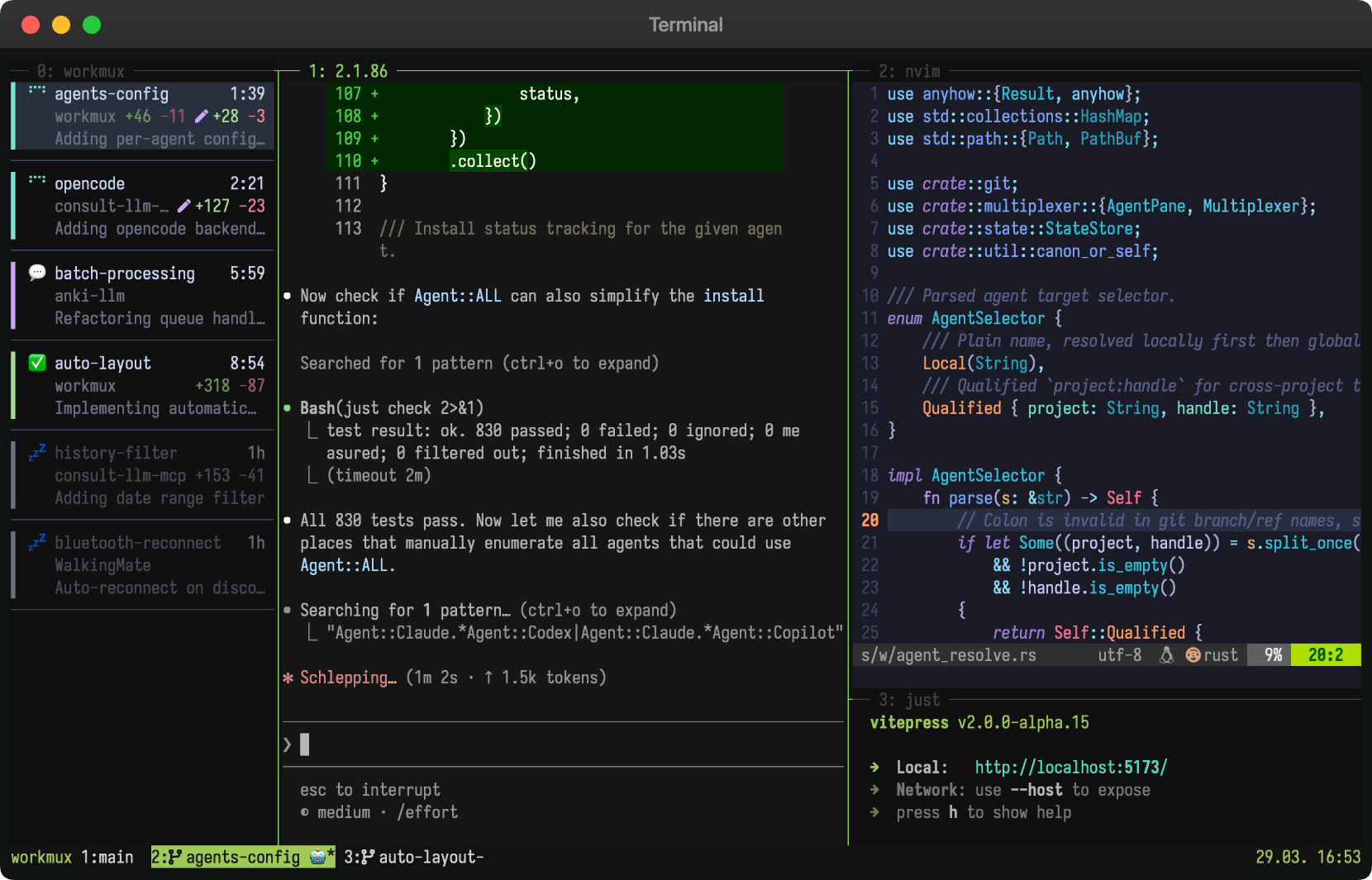
Also from the author of workmux: aven, one queue for every project, with a keyboard-driven TUI for you and a CLI for your agents.
Why workmux?
Parallel workflows. Work on multiple features the same time, each with its own AI agent. No stashing, no branch switching, no conflicts.
One window per task. A natural mental model. Each has its own terminal state, editor session, dev server, and AI agent. Context switching is switching tabs.
Automated setup. New worktrees start broken (no .env, no node_modules,
no dev server). workmux can copy config files, symlink dependencies, and run
install commands on creation.
One-command cleanup. workmux merge handles the full lifecycle: merge the
branch, delete the worktree, close the tmux window, remove the local branch.
Terminal workflow. Build on your terminal setup instead of yet another agentic GUI that won't exist next year. If you don't have one yet, tmux might be worth picking up.
New to worktrees? See Why git worktrees?
Features
- Create git worktrees with matching tmux windows in a single command (
add) - Merge branches and clean up everything (worktree, tmux window, branches) in
one command (
merge) - Dashboard for monitoring agents, reviewing changes, and sending commands
- Sidebar for a persistent, at-a-glance view of all agents across tmux windows
- Delegate tasks to worktree agents with the
/worktreeskill - Display agent status in tmux window names
- Automatically set up your preferred tmux pane layout (editor, shell, watchers, etc.)
- Run post-creation hooks (install dependencies, setup database, etc.)
- Copy or symlink configuration files (
.env,node_modules) into new worktrees - Sandbox agents in containers or VMs for enhanced security
- Run agents on a remote server over SSH while others stay local
- Automatic branch name generation from prompts using LLM
- Shell completions
What people say
- "I've been using (and loving) workmux which brings together tmux, git worktrees, and CLI agents into an opinionated workflow." - Coolin96 on Hacker News
- "Thank you so much for your work with workmux! It's a tool I've been wanting to exist for a long time." - rstacruz on GitHub
- "It's become my daily driver - the perfect level of abstraction over tmux + git, without getting in the way or obscuring the underlying tooling." - cisaacstern on GitHub
- "I have to mention workmux at every opportunity because it's the perfect glue between worktrees, agents and tmux windows." - dedbrizz on Threads
- "Since I discovered workmux I'm cooking. Amazing parallel-agent driver if you like tmux and want to keep your config." - MatijaSosic on X
- "Using workmux with a well-configured tmux has been a breath of fresh air" - sbeirakh_il on X
- "I've been using it for about a month now, and it's been nothing but great." - gabrielrockson_ on X
- "I still don't see the need for Herdr. Workmux adds busy/question/done status, manages worktrees by itself, and etc. It lives on an already existing tmux setup." - 13hcoks on X
- "workmux is fantastic. nothing too fancy, solves a real problem and stays in TMUX ❤️" - devopstoolbox on X
- "Workmux is fantastic if you're mostly terminal bound." - cody1786 on X
- "Want modern terminal workspace features without abandoning your setup? Here is how to keep Tmux and boost your workflow using Workmux." - Sam Natale on YouTube
Community videos
Some kind people have made videos about workmux on YouTube. If you're looking for a demo, check them out.
 Tmux is Still Better Than Herdr (Here's Why) Sam Natale |
 I Don't Want a New Terminal. I Want THIS for Tmux. DevOps Toolbox |
 Tmux Didn't Need a Replacement, It Needed Workmux Seth Phaeno |
Installation
Official sources: github.com/raine/workmux and workmux.dev. This project is not affiliated with workmux.com.
Bash YOLO
curl -fsSL https://raw.githubusercontent.com/raine/workmux/main/scripts/install.sh | bash
Homebrew (macOS/Linux)
brew install raine/workmux/workmux
Other methods (Cargo, mise, Nix)
Cargo (requires rustup):
cargo install workmux
mise:
mise use -g cargo:raine/workmux
Nix (flake and home-manager setup):
nix profile install github:raine/workmux
For manual installation, see pre-built binaries.
Quick start
Note
workmux requires a terminal multiplexer. Make sure you have tmux (or WezTerm / Kitty / Zellij) installed and running before you start. See My tmux setup if you need a starting point.
-
Initialize configuration (optional):
workmux init
This creates a
.workmux.yamlfile to customize your workflow (pane layouts, setup commands, file operations, etc.). workmux works out of the box with sensible defaults, so this step is optional. -
Create a new worktree and tmux window:
workmux add new-feature
This will:
- Create a git worktree at
<project_root>/../<project_name>__worktrees/new-feature - Copy config files and symlink dependencies (if configured)
- Run any
post_createsetup commands - Create a tmux window named
wm-new-feature(the prefix is configurable) - Set up your configured or the default tmux pane layout
- Automatically switch your tmux client to the new window
- Create a git worktree at
-
Do your thing
-
Finish and clean up
Local merge: Run
workmux mergeto merge into the base branch and clean up in one step.PR workflow: Push and open a PR. After it's merged, run
workmux removeto clean up.
Configuration
workmux uses a two-level configuration system:
- Global (
~/.config/workmux/config.yaml): Personal defaults for all projects - Project (
.workmux.yaml): Project-specific overrides
Project settings override global settings. When you run workmux from a
subdirectory, it walks upward to find the nearest .workmux.yaml, allowing
nested configs for monorepos. See the
Monorepos guide
for details. For hook lists (post_create, pre_merge, pre_remove) and file
operation lists (files.copy, files.symlink), you can use "<global>" to
include global values alongside project-specific ones. Other settings like
panes are replaced entirely when defined in the project config.
Global configuration example
~/.config/workmux/config.yaml:
nerdfont: true # Enable nerdfont icons (prompted on first run)
merge_strategy: rebase # Make workmux merge do rebase by default
merge_keep: true # Keep worktree, window, and branch after merge by default
confirm_unmerged_removal: false # Remove unmerged branches without confirmation
agent: claude

panes:
  - command: <agent> # Start the configured agent (e.g., claude)
    focus: true
  - split: horizontal # Second pane with default shell
Project configuration example
.workmux.yaml:
post_create:
  - '<global>'
  - mise use

files:
  symlink:
    - '<global>' # Include global symlinks (node_modules)
    - .pnpm-store # Add project-specific symlink

panes:
  - command: pnpm install
    focus: true
  - command: <agent>
    split: horizontal
  - command: pnpm run dev
    split: vertical
For a real-world example, see
workmux's own .workmux.yaml.
Configuration options
Most options have sensible defaults. You only need to configure what you want to customize.
Basic options
| Option | Description | Default |
|---|---|---|
main_branch |
Branch to merge into | Auto-detected |
base_branch |
Default base ref for new worktrees, or auto for the effective main branch |
Current branch |
worktree_dir |
Directory for worktrees (absolute or relative). Supports ~ and {project}. |
<project>__worktrees/ |
window_prefix |
Prefix for tmux window/session names. Supports {project}. |
wm- |
mode |
Tmux mode (window or session) |
window |
default_session |
Session to return to when a workmux session closes (session mode) | Previous session |
window_placement |
New tmux window placement (after_current or rightmost) |
after_current |
agent |
Default agent for <agent> placeholder |
claude |
agents |
Named agent commands (docs, global-only) | {} |
merge_strategy |
Default merge strategy (merge, rebase, squash) |
merge |
merge_keep |
Keep resources after workmux merge by default |
false |
confirm_unmerged_removal |
Confirm before deleting branches with commits not merged into their base | true |
theme |
Dashboard color scheme (custom colors) | default (auto dark/light) |
Set base_branch: auto to create independent work streams from each repository's
effective main branch. Workmux uses configured main_branch, then the local
origin/HEAD, main, or master. Detection uses local Git state and does not
fetch. Omitting base_branch continues to create branches from the checked-out
branch.
Naming options
| Option | Description | Default |
|---|---|---|
worktree_naming |
How to derive names from branches | full |
worktree_prefix |
Prefix for worktree directories and windows | none |
worktree_naming strategies:
full: Use the full branch name (slashes become dashes)basename: Use only the part after the last/(e.g.,prj-123/feature→feature)
Panes
Define your multiplexer pane layout with the panes array. For multiple windows in
session mode, use windows instead (they are
mutually exclusive).
panes:
  - command: <agent>
    name: agent
    focus: true
  - command: npm run dev
    name: dev
    split: horizontal
    size: 15
Each pane supports:
| Option | Description | Default |
|---|---|---|
name |
Pane display name (currently applied by the Zellij backend) | --- |
command |
Command to run (see agent placeholders) | Shell |
focus |
Whether this pane receives focus | false |
zoom |
Zoom pane to fullscreen (implies focus: true) |
false |
split |
Split direction (horizontal or vertical) |
--- |
size |
Absolute size in lines/cells | 50% |
percentage |
Size as percentage (1-100) | 50% |
target |
0-based pane index to split from; defaults to most recent pane | most recent pane |
Use target when you want to split something other than the pane that was just
created. The target must reference an earlier pane in the same layout.
panes:
  - command: nvim
    focus: true
  - command: pnpm install && pnpm run dev
    split: vertical
    size: 15
  - command: <agent>
    split: horizontal
    target: 0
This creates three panes: nvim is at the top left, the agent is to its right,
and the dev server spans the bottom.
Agent placeholders
<agent>: resolves to the configured agent (fromagentconfig or--agentflag)
Built-in agents (claude, gemini, agy, codex, opencode, kiro-cli, vibe,
pi, omp, grok) are auto-detected when used as literal commands and receive prompt
injection automatically, without needing the <agent> placeholder or a matching
agent config:
panes:
  - command: 'claude --dangerously-skip-permissions'
    focus: true
  - command: 'codex --yolo'
    split: vertical
Each agent receives the prompt (via -p/-P/-e) using the correct format for
that agent. Auto-detection matches the executable name regardless of flags or
path.
Antigravity CLI support covers command detection, prompt injection, and status
tracking via lifecycle hooks installed by workmux setup.
Named layouts
Define reusable pane arrangements in the layouts map and select one at
add-time with -l/--layout:
layouts:
  design:
    panes:
      - command: <agent>
        focus: true
      - command: <agent:codex>
        split: vertical
  review:
    panes:
      - command: <agent>
workmux add my-feature -l design
When -l is used, the layout's panes replace the top-level panes for that
worktree. All other config (hooks, files, agent, etc.) comes from the top-level
as usual. The -l flag cannot be combined with --agent.
File operations
New worktrees are clean checkouts with no gitignored files (.env,
node_modules, etc.). Use files to automatically copy or symlink what each
worktree needs:
files:
  copy:
    - .env
  symlink:
    - .next/cache # Share build cache across worktrees
Both copy and symlink accept glob patterns.
To re-apply file operations to an existing worktree (e.g., after updating the
config), run workmux sync-files from inside the worktree. Use --all to sync
all worktrees at once.
Lifecycle hooks
Run commands at specific points in the worktree lifecycle, such as installing
dependencies or running database migrations. All hooks run with the worktree
directory as the working directory (or the nested config directory for
nested configs)
and receive environment variables: WM_HANDLE, WM_WORKTREE_PATH,
WM_PROJECT_ROOT, WM_CONFIG_DIR.
hook_shell is an argv list containing the executable followed by its
arguments. Workmux appends each hook command as the final argument. It defaults
to ["bash", "-c"] for compatibility. Machine-specific paths belong in global
configuration:
hook_shell: ["/opt/homebrew/bin/bash", "-c"]
A project can override the complete argv, or inherit the global value by
omitting hook_shell. The argv must contain a non-empty executable. Shell flags
and error handling apply only when included explicitly.
WM_PROJECT_ROOT points to the repository's main worktree, regardless of where
the selected config is stored. WM_CONFIG_DIR points to the corresponding
config directory in the new worktree, which may differ from WM_WORKTREE_PATH
when using nested configs.
| Hook | When it runs | Additional env vars |
|---|---|---|
post_create |
After worktree creation, before tmux window opens | — |
pre_merge |
Before merging (aborts on failure) | WM_BRANCH_NAME, WM_TARGET_BRANCH |
pre_remove |
Before worktree removal (aborts on failure) | — |
Example:
post_create:
  - direnv allow

pre_merge:
  - just check
In Node.js projects, pre_remove defaults to a fast node_modules cleanup, and
defining your own commands replaces that default. Use
"<cleanup-node-modules>" to keep it:
pre_remove:
  - cp -r test-results/ "$WM_PROJECT_ROOT/artifacts/$WM_HANDLE/"
  - "<cleanup-node-modules>"
Agent status icons
Customize the icons shown in tmux window names:
status_icons:
  working: '🤖' # Agent is processing
  waiting: '💬' # Agent needs input (auto-clears on focus)
  done: '✅' # Agent finished (auto-clears on focus)
Agents in "working" status that produce no pane output for 10 seconds are automatically detected as interrupted.
Set status_format: false to disable automatic tmux format modification
Default behavior
- Worktrees are created in
<project>__worktreesas a sibling directory to your project by default - If no
panesconfiguration is defined, workmux provides opinionated defaults:- For projects with a
CLAUDE.mdfile: Opens the configured agent (seeagentoption) in the first pane, defaulting toclaudeif none is set. - For all other projects: Opens your default shell.
- Both configurations include a second pane split horizontally
- For projects with a
post_createcommands are optional and only run if you configure them
Automatic setup with panes
Use the panes configuration to automate environment setup. Unlike
post_create hooks which must finish before the tmux window opens, pane
commands execute immediately within the new window.
This can be used for:
- Installing dependencies: Run
npm installorcargo buildin a focused pane to monitor progress. - Starting services: Launch dev servers, database containers, or file watchers automatically.
- Running agents: Initialize AI agents with specific context.
Since these run in standard tmux panes, you can interact with them (check logs, restart servers) just like a normal terminal session.
Running dependency installation (like pnpm install) in a pane command rather
than post_create has a key advantage: you get immediate access to the tmux
window while installation runs in the background. With post_create, you'd have
to wait for the install to complete before the window even opens. This also
means AI agents can start working immediately in their pane while dependencies
install in parallel.
panes:
  # Pane 1: Install dependencies, then start dev server
  - command: pnpm install && pnpm run dev

  # Pane 2: AI agent
  - command: <agent>
    split: horizontal
    focus: true
Directory structure
Here's how workmux organizes your worktrees by default:
~/projects/
├── my-project/               <-- Main project directory
│   ├── src/
│   ├── package.json
│   └── .workmux.yaml
│
└── my-project__worktrees/    <-- Worktrees created by workmux
    ├── feature-A/            <-- Isolated workspace for 'feature-A' branch
    │   ├── src/
    │   └── package.json
    │
    └── bugfix-B/             <-- Isolated workspace for 'bugfix-B' branch
        ├── src/
        └── package.json
Each worktree is a separate working directory for a different branch, all sharing the same git repository. This allows you to work on multiple branches simultaneously without conflicts.
You can customize the worktree directory location using the worktree_dir
configuration option (see Configuration options).
The value supports ~ for the home directory and a {project} placeholder
that resolves to the main worktree's directory name. This lets a single
global config namespace every repo's worktrees under one root, e.g.
worktree_dir: ~/.workmux/{project}.
Shell alias (recommended)
For faster typing, alias workmux to wm:
alias wm='workmux'
Commands
add- Create a new worktree and tmux windowmerge- Merge a branch and clean up everythingrebase- Rebase a worktree branch onto its base branchremove- Remove worktrees without merginglist- List all worktrees with statusopen- Open a tmux window for an existing worktreeclose- Close a worktree's tmux window (keeps worktree)resurrect- Restore worktree windows after a crashpath- Get the filesystem path of a worktreedashboard- Show TUI dashboard of all active agentssidebar- Toggle a compact agent status sidebar in tmuxreap-agents- Exit tracked agent processes older than a thresholdconfig edit- Edit the global configuration fileinit- Generate configuration filesandbox- Manage sandbox backends (container/Lima)claude prune- Clean up stale Claude Code entriescompletions- Generate shell completionsdocs- Show detailed documentation
workmux add <branch-name>
Creates a new git worktree with a matching tmux window and switches you to it immediately. If the branch doesn't exist, it will be created automatically.
<branch-name>: Name of the branch to create or switch to, a remote branch reference (e.g.,origin/feature-branch), or a GitHub fork reference (e.g.,user:branch). Remote and fork references are automatically fetched and create a local branch with the derived name. Fork references derive the local branch asuser-branch(e.g.,someuser:featurecreates local branchsomeuser-feature). Optional when using--pr.
Options
--base <branch|commit|tag>: Specify a base branch, commit, or tag to branch from when creating a new branch. Overridesbase_branchconfig. The config valueautouses the effective main branch. Without either setting, workmux uses the currently checked out branch.--pr <number|url>: Checkout a GitHub pull request by its number or full URL into a new worktree.- Requires the
ghcommand-line tool to be installed and authenticated. - URLs use the form
https://github.com/<owner>/<repository>/pull/<number>. - The local branch name defaults to the PR's head branch name, but can be
overridden (e.g.,
workmux add custom-name --pr 123). - If that local branch already exists and has no worktree, it is reused.
- Requires the
-A, --auto-name: Generate branch name from prompt using LLM. See Automatic branch name generation.--name <name>: Override the worktree directory and tmux window name. By default, these are derived from the branch name (slugified). Cannot be used with multi-worktree generation (--count,--foreach, or multiple--agent).-b, --background: Create the tmux window in the background without switching to it. Useful with--prompt-editor.--remote [<name>]: Create the workspace on a remote server. The name is optional whenplacementnames a remote or only one is configured. Put the branch name first:workmux add my-branch --remote.--local: Create the workspace locally even whenplacementnames a remote.-w, --with-changes: Move uncommitted changes from the current worktree to the new worktree, then reset the original worktree to a clean state. Useful when you've started working on main and want to move your branches to a new worktree.--patch: Interactively select which changes to move (requires--with-changes). Opens an interactive prompt for selecting hunks to stash.-u, --include-untracked: Also move untracked files (requires--with-changes). By default, only staged and modified tracked files are moved.-p, --prompt <text>: Provide an inline prompt that will be automatically passed to AI agent panes.-P, --prompt-file <path>: Provide a path to a file whose contents will be used as the prompt.-e, --prompt-editor: Open your$EDITOR(or$VISUAL) to write the prompt interactively.--prompt-file-only: Write the prompt file to the worktree without injecting it into agent commands. No agent pane is required. Useful when your editor has an embedded agent that reads.workmux/PROMPT-*.mddirectly.-l, --layout <name>: Use a named pane layout from config instead of the default panes. Cannot be combined with--agent.-a, --agent <name>: The agent(s) to use for the worktree(s). Can be specified multiple times to generate a worktree for each agent. Overrides theagentfrom your config file.-W, --wait: Block until the created tmux window is closed. Useful for scripting when you want to wait for an agent to complete its work. The agent can signal completion by runningworkmux remove --keep-branch.-o, --open-if-exists: If a worktree for the branch already exists, open it instead of failing. Similar totmux new-session -A. Useful when you don't know or care whether the worktree already exists.-s, --session: Create a tmux session instead of a window. See Session mode for details.--dry-run: Print the resolved worktree path, branch, base, multiplexer target, file operations, and post-create hooks without creating or modifying anything.--headless: Create the worktree, apply file operations, and runpost_createhooks without requiring or creating a multiplexer target.--json: Emit a versioned provisioning receipt on stdout. Requires--headless. Hook output and diagnostics use stderr.--config <path>: Use an alternate config file for this invocation. Still merges with global config.--fork: Fork the last conversation from the current worktree into the new one. The agent resumes with the forked conversation context. Use--fork=<session-id>to fork a specific session (prefix matching supported). Supports Claude Code and Codex.
Skip options
These options allow you to skip expensive setup steps when they're not needed (e.g., for documentation-only changes):
-H, --no-hooks: Skip runningpost_createcommands-F, --no-file-ops: Skip file copy/symlink operations (e.g., skip linkingnode_modules)-C, --no-pane-cmds: Skip executing pane commands (panes open with plain shells instead)
What happens
- Determines the handle for the worktree by slugifying the branch name
(e.g.,
feature/authbecomesfeature-auth). This can be overridden with the--nameflag. - Creates a git worktree at
<worktree_dir>/<handle>(theworktree_diris configurable and defaults to a sibling directory of your project) - Runs any configured file operations (copy/symlink)
- Executes
post_createcommands if defined (runs before the tmux window opens, so keep them fast) - Creates a new tmux window named
<window_prefix><handle>(e.g.,wm-feature-authwithwindow_prefix: wm-) - Sets up your configured tmux pane layout
- Automatically switches your tmux client to the new window
In tmux window mode without --parent-session, $TMUX_PANE identifies the
calling pane and its parent session. When $TMUX_PANE is absent or stale,
workmux uses live pane working directories when their closest matches identify
one session. A tmux server with one session is the final fallback. Remaining
ambiguity requires --parent-session <name>. The working directory selects the
Git repository and only provides conservative evidence for tmux placement.
Headless provisioning
Automation can provision a fully configured worktree without asking workmux to manage its terminal process:
workmux add suba-parser-a1b2c3d4 \
  --name suba-parser-a1b2c3d4 \
  --headless \
  --json
The command creates or checks out the local branch, applies configured file
operations, and runs post_create hooks. It does not inspect or create mux
sessions, windows, panes, layouts, or pane commands. The JSON receipt includes
schema_version, handle, branch, absolute worktree_path, absolute
working_directory, base_branch, and post_create_hooks_run.
Headless worktrees persist until removed with workmux remove <handle>. A later
workmux open <handle> attaches a workmux-managed multiplexer target. Headless
branch arguments are local branch names; remote branch syntax is rejected.
Prompt, rescue, multi-worktree, sandbox, wait, dry-run, and mux-specific options
are not accepted with --headless.
Examples
Basic usage
# Create a new branch and worktree
workmux add user-auth

# Use an existing branch
workmux add existing-work

# Create a new branch from a specific base
workmux add hotfix --base production

# Create a worktree from a remote branch (creates local branch "user-auth-pr")
workmux add origin/user-auth-pr

# Remote branches with slashes work too (creates local branch "feature/foo")
workmux add origin/feature/foo

# Preview the resolved plan without creating anything
workmux add feature/parallel-task --dry-run

# Create a worktree in the background without switching to it
workmux add feature/parallel-task --background

# Use a custom name for the worktree directory and tmux window
workmux add feature/long-descriptive-branch-name --name short

# Open existing worktree if it exists, create if it doesn't (idempotent)
workmux add my-feature -o
Checking out pull requests and fork branches
# Checkout PR #123. The local branch will be named after the PR's branch.
workmux add --pr 123

# Checkout a pull request from its full GitHub URL with a custom local branch
workmux add --pr https://github.com/raine/workmux/pull/456 fix/api-bug

# Checkout a fork branch using GitHub's owner:branch format (copy from GitHub UI)
# Creates local branch "someuser-feature-branch" tracking the fork
workmux add someuser:feature-branch
Moving changes to a new worktree
# Move uncommitted changes to a new worktree (including untracked files)
workmux add feature/new-thing --with-changes -u

# Move only staged/modified files (not untracked files)
workmux add fix/bug --with-changes

# Interactively select which changes to move
workmux add feature/partial --with-changes --patch
AI agent prompts
# Create a worktree with an inline prompt for AI agents
workmux add feature/ai --prompt "Implement user authentication with OAuth"

# Override the default agent for a specific worktree
workmux add feature/testing -a gemini

# Create a worktree with a prompt from a file
workmux add feature/refactor --prompt-file task-description.md

# Open your editor to write a prompt interactively
workmux add feature/new-api --prompt-editor

# Write prompt file only (for editors with embedded agents like neovim)
workmux add feature/task -P task.md --prompt-file-only
Skipping setup steps
# Skip expensive setup for documentation-only changes
workmux add docs-update --no-hooks --no-file-ops --no-pane-cmds

# Skip just the file operations (e.g., you don't need node_modules)
workmux add quick-fix --no-file-ops
Scripting with --wait
# Block until the agent completes and closes the window
workmux add feature/api --wait -p "Implement the REST API, then run: workmux remove --keep-branch"

# Use in a script to run sequential agent tasks
for task in task1.md task2.md task3.md; do
  workmux add "task-$(basename $task .md)" --wait -P "$task"
done
AI agent integration
When you provide a prompt via --prompt, --prompt-file, or --prompt-editor,
workmux automatically injects the prompt into panes running the configured agent
command (e.g., claude, codex, opencode, gemini, agy, kiro-cli, vibe,
pi, omp, grok, or whatever you've set via the agent config or --agent flag) without
requiring any .workmux.yaml changes:
- Panes with a command matching the configured agent are automatically started with the given prompt.
- You can keep your
.workmux.yamlpane configuration simple (e.g.,panes: [{ command: "<agent>" }]) and let workmux handle prompt injection at runtime.
This means you can launch AI agents with task-specific prompts without modifying your project configuration for each task.
If your editor has an embedded agent (e.g., neovim with an agent plugin), use
--prompt-file-only to write the prompt to .workmux/PROMPT-<branch>.md
without requiring an agent pane. Your editor can then detect and consume the
file on startup. This can also be set permanently in config with
prompt_file_only: true.
Automatic branch name generation
The --auto-name (-A) flag generates a branch name from your prompt using an
LLM. The tool used depends on your configuration:
auto_name.commandis set: uses that command as-isconfig.agentis a known agent (claude,gemini,agy,codex,opencode,kiro-cli,vibe,pi,omp): uses the agent's CLI with a fast/cheap model- Neither: falls back to the
llmCLI tool
Usage
# Opens editor for prompt, generates branch name
workmux add -A

# With inline prompt
workmux add -A -p "Add OAuth authentication"

# With prompt file
workmux add -A -P task-spec.md
Requirements
When agent is configured (e.g., agent: claude), workmux automatically uses
that agent's CLI for branch naming. No additional setup is required beyond
having the agent installed.
If no agent is configured and no auto_name.command is set, workmux uses the
llm CLI tool:
pipx install llm
Configure a model (e.g., OpenAI):
llm keys set openai
# Or use a local model
llm install llm-ollama
If you set auto_name.command, llm is not required.
Agent profile defaults
When an agent is configured, these commands are used automatically:
| Agent | Auto-name command |
|---|---|
claude |
claude --model haiku --no-session-persistence -p |
gemini |
gemini -m gemini-2.5-flash-lite -p |
codex |
codex exec --ephemeral --config model_reasoning_effort="low" -m gpt-6-luna |
opencode |
opencode run |
kiro-cli |
kiro-cli chat --no-interactive |
pi |
pi --no-session -p |
omp |
omp --no-session -p |
To override back to llm when an agent is configured, set
auto_name.command: "llm".
Configuration
Optionally configure auto-name behavior in .workmux.yaml:
auto_name:
  model: 'gemini-2.5-flash-lite'
  background: true # Always run in background when using --auto-name
  system_prompt: |
    Generate a concise git branch name based on the task description.

    Rules:
    - Use kebab-case (lowercase with hyphens)
    - Keep it short: 1-3 words, max 4 if necessary
    - Focus on the core task/feature, not implementation details
    - No prefixes like feat/, fix/, chore/

    Examples of good branch names:
    - "Add dark mode toggle" → dark-mode
    - "Fix the search results not showing" → fix-search
    - "Refactor the authentication module" → auth-refactor
    - "Add CSV export to reports" → export-csv
    - "Shell completion is broken" → shell-completion

    Output ONLY the branch name, nothing else.
To use a specific tool, set auto_name.command. The command string is split
into program and arguments, and the composed prompt is piped via stdin. Valid
Git branch names are preserved, including slash-separated prefixes such as
fix/issue-123.
auto_name:
  command: 'claude -p'

# Force llm even when an agent is configured
auto_name:
  command: 'llm'
| Option | Description | Default |
|---|---|---|
command |
Command for branch name generation (overrides agent profile) | Agent profile or llm CLI |
model |
LLM model to use with the llm CLI (ignored when command set) |
llm's default |
background |
Always run in background when using --auto-name |
false |
system_prompt |
Custom system prompt for branch name generation | Built-in prompt |
Recommended models for fast, cheap branch name generation (with llm):
gemini-2.5-flash-lite(recommended)gpt-5-nano
Parallel workflows & multi-worktree generation
workmux can generate multiple worktrees from a single add command, which is
ideal for running parallel experiments or delegating tasks to multiple AI
agents. This is controlled by four mutually exclusive modes:
- (
-a,--agent): Create a worktree for each specified agent. - (
-n,--count): Create a specific number of worktrees. - (
--foreach): Create worktrees based on a matrix of variables. - stdin: Pipe input lines to create worktrees with templated prompts.
When using any of these modes, branch names are generated from a template, and
prompts are templated with variables. Single-worktree prompts are passed through
literally, so common syntax like GitHub Actions ${{ ... }} does not need to be
escaped.
Multi-worktree options
-a, --agent <name>: When used multiple times, creates one worktree for each agent.-n, --count <number>: Creates<number>worktree instances. Can be combined with a single--agentflag to apply that agent to all instances.--foreach <matrix>: Creates worktrees from a variable matrix string. The format is"var1:valA,valB;var2:valX,valY". All value lists must have the same length. Values are paired by index position (zip, not Cartesian product): the first value of each variable goes together, the second with the second, etc.--branch-template <template>: A MiniJinja (Jinja2-compatible) template for generating branch names.- Available variables:
{{ base_name }},{{ agent }},{{ num }},{{ index }},{{ input }}(stdin), and any variables from--foreach. - Default:
{{ base_name }}{% if agent %}-{{ agent | slugify }}{% endif %}{% for key, value in foreach_vars %}-{{ value | slugify }}{% endfor %}{% if num %}-{{ num }}{% endif %}
- Available variables:
--max-concurrent <number>: Limits how many worktrees run simultaneously. When set, workmux creates up to<number>worktrees, then waits for any window to close before starting the next. Requires agents to close windows when done (e.g., via prompt instruction to runworkmux remove --keep-branch).
Prompt templating
When generating multiple worktrees, any prompt provided via -p, -P, or -e
is treated as a MiniJinja template. You can use variables from your generation
mode to create unique prompts for each agent or instance. For ordinary
single-worktree add commands, prompt text is not templated.
Variable matrices in prompt files
Instead of passing --foreach on the command line, you can specify the variable
matrix directly in your prompt file using YAML frontmatter. This is more
convenient for complex matrices and keeps the variables close to the prompt that
uses them.
Format:
Create a prompt file with YAML frontmatter at the top, separated by ---:
Example 1: mobile-task.md
---
foreach:
  platform: [iOS, Android]
  lang: [swift, kotlin]
---

Build a {{ platform }} app using {{ lang }}. Implement user authentication and
data persistence.
workmux add mobile-app --prompt-file mobile-task.md
# Generates worktrees: mobile-app-ios-swift, mobile-app-android-kotlin
Example 2: agent-task.md (using agent as a foreach variable)
---
foreach:
  agent: [claude, gemini]
---

Implement the dashboard refactor using your preferred approach.
workmux add refactor --prompt-file agent-task.md
# Generates worktrees: refactor-claude, refactor-gemini
Behavior:
- Variables from the frontmatter are available in both the prompt template and the branch name template
- All value lists must have the same length, and values are paired by index
position (same zip behavior as
--foreach) - CLI
--foreachoverrides frontmatter with a warning if both are present - Works with both
--prompt-fileand--prompt-editor
Stdin input
You can pipe input lines to workmux add to create multiple worktrees. Each
line becomes available as the {{ input }} template variable in your prompt.
This is useful for batch-processing tasks from external sources.
Plain text: Each line becomes {{ input }}
echo -e "api\nauth\ndatabase" | workmux add refactor -P task.md
# {{ input }} = "api", "auth", "database"
JSON lines: Each key becomes a template variable
gh repo list --json url,name --jq -c '.[]' | workmux add analyze \
  --branch-template '{{ base_name }}-{{ name }}' \
  -P prompt.md
# Line: {"url":"https://github.com/raine/workmux","name":"workmux"}
# Variables: {{ url }}, {{ name }}, {{ input }} (raw JSON line)
This lets you structure data upstream with jq and use meaningful branch names
while keeping the full URL available in your prompt.
Behavior:
- Empty lines and whitespace-only lines are filtered out
- Stdin input cannot be combined with
--foreach(mutually exclusive) - JSON objects (lines starting with
{) are parsed and each key becomes a variable {{ input }}always contains the raw line- If JSON contains an
inputkey, it overwrites the raw line value
Examples
# Create one worktree for claude and one for gemini with a focused prompt
workmux add my-feature -a claude -a gemini -p "Implement the new search API integration"
# Generates worktrees: my-feature-claude, my-feature-gemini

# Create 2 instances of the default agent
workmux add my-feature -n 2 -p "Implement task #{{ num }} in TASKS.md"
# Generates worktrees: my-feature-1, my-feature-2

# Create worktrees from a variable matrix
workmux add my-feature --foreach "platform:iOS,Android" -p "Build for {{ platform }}"
# Generates worktrees: my-feature-ios, my-feature-android

# Create agent-specific worktrees via --foreach
workmux add my-feature --foreach "agent:claude,gemini" -p "Implement the dashboard refactor"
# Generates worktrees: my-feature-claude, my-feature-gemini

# Use frontmatter in a prompt file for cleaner syntax
# task.md contains:
# ---
# foreach:
#   env: [staging, production]
#   task: [smoke-tests, integration-tests]
# ---
# Run {{ task }} against the {{ env }} environment
workmux add testing --prompt-file task.md
# Generates worktrees: testing-staging-smoke-tests, testing-production-integration-tests

# Pipe input from stdin to create worktrees
# review.md contains: Review the {{ input }} module for security issues.
echo -e "auth\npayments\napi" | workmux add review -A -P review.md
# Generates worktrees with LLM-generated branch names for each module
Recipe: Batch processing with worker pools
Combine stdin input, prompt templating, and concurrency limits to create a worker pool that processes items from an external command.
Example: Generate test scaffolding for untested files
# generate-tests.md contains:
# Read the file at {{ input }} and generate a test suite covering
# the exported functions. Focus on happy path and edge cases.
# When done, run: workmux remove --keep-branch

find src/utils -name "*.ts" ! -name "*.test.ts" | \
  workmux add add-tests \
    --branch-template '{{ base_name }}-{{ index }}' \
    --prompt-file generate-tests.md \
    --max-concurrent 3 \
    --background
find ...lists files without tests (one per line) piped to stdin--branch-templateuses{{ index }}for unique branch names--prompt-fileuses{{ input }}to pass each file path to the agent--max-concurrent 3limits parallel agents to avoid rate limits--backgroundruns without switching focus
workmux merge [branch-name]
Merges a branch into a target branch (main by default) and automatically cleans up all associated resources (worktree, tmux window, and local branch).
Tip
mergevsremove: Usemergewhen you want to merge directly without a pull request. If your workflow uses pull requests, useremoveto clean up after your PR is merged on the remote.
[branch-name]: Optional name of the branch to merge. If omitted, automatically detects the current branch from the worktree you're in.
Options
--into <branch>: Merge into the specified branch instead of the main branch. Useful for stacked PRs, git-flow workflows, or merging subtasks into a parent feature branch. If the target branch has its own worktree, the merge happens there; otherwise, the main worktree is used.--ignore-uncommitted: Commit any staged changes before merging without opening an editor--keep,-k: Keep the worktree, window, and branch after merging (skip cleanup). Useful when you want to verify the merge before cleaning up.--cleanup: Clean up after merging, overridingmerge_keep: true.--notification: Show a system notification on successful merge. Useful when delegating merge to an AI agent and you want to be notified when it completes.
Merge strategies
By default, workmux merge performs a standard merge commit (configurable via
merge_strategy). You can override the configured behavior with these mutually
exclusive flags:
--rebase: Rebase the feature branch onto the target before merging (creates a linear history via fast-forward merge). If conflicts occur, you'll need to resolve them manually in the worktree and rungit rebase --continue.--squash: Squash all commits from the feature branch into a single commit on the target. You'll be prompted to provide a commit message in your editor.
If you don't want to have merge commits in your main branch, use the rebase
merge strategy, which does --rebase by default.
# ~/.config/workmux/config.yaml
merge_strategy: rebase
To keep the worktree, window, and branch after every merge unless overridden, set:
merge_keep: true
Use workmux merge --cleanup to clean up for a single merge when this default is
enabled.
What happens
- Determines which branch to merge (specified branch or current branch if omitted)
- Determines the target branch (
--intoor main branch from config) - Checks for uncommitted changes (errors if found, unless
--ignore-uncommittedis used) - Commits staged changes if present (unless
--ignore-uncommittedis used) - Merges your branch into the target using the selected strategy (default: merge commit)
- Deletes the tmux window unless keep behavior is enabled via
--keepormerge_keep: true - Removes the worktree unless keep behavior is enabled via
--keepormerge_keep: true - Deletes the local branch unless keep behavior is enabled via
--keepormerge_keep: true
Typical workflow
When you're done working in a worktree, simply run workmux merge from within
that worktree's tmux window. The command will automatically detect which branch
you're on, merge it into main, and close the current window as part of cleanup.
Examples
# Merge branch into main (default: merge commit)
workmux merge user-auth

# Merge the current worktree you're in
# (run this from within the worktree's tmux window)
workmux merge

# Rebase onto main before merging for a linear history
workmux merge user-auth --rebase

# Squash all commits into a single commit
workmux merge user-auth --squash

# Merge but keep the worktree/window/branch to verify before cleanup
workmux merge user-auth --keep
# ... verify the merge in main ...
workmux remove user-auth  # clean up later when ready

# Merge into a different branch (stacked PRs)
workmux merge feature/subtask --into feature/parent
workmux rebase [name]
Rebases a worktree branch onto its saved base branch. If the branch does not have a saved local base branch, workmux rebases onto the configured main branch.
[name]: Optional worktree name or branch. If omitted, workmux detects the current worktree from the current directory.
What happens
- Determines which worktree branch to rebase
- Reads the saved base branch recorded when the worktree was created
- Falls back to the configured main branch when the saved base is not a local branch
- Runs
git rebase <base>inside the worktree - Leaves the worktree, window, and branch in place
Examples
workmux rebase user-auth
workmux rebase
workmux remove [name]... (alias: rm)
Removes worktrees, tmux windows, and branches without merging (unless you keep the branches). Useful for abandoning work or cleaning up experimental branches. Supports removing multiple worktrees in a single command.
[name]...: One or more worktree names (the directory names). Defaults to current directory name if omitted.
Options
--all: Remove all worktrees at once (except the main worktree). Prompts for confirmation unless--forceis used. Safely skips worktrees with uncommitted changes or unmerged commits.--gone: Remove worktrees whose upstream remote branch has been deleted (e.g., after a PR is merged on GitHub). Automatically runsgit fetch --prunefirst.--force,-f: Skip confirmation prompt and ignore uncommitted changes--keep-branch,-k: Remove only the worktree and tmux window while keeping the local branch
Set confirm_unmerged_removal: false to remove branches with unmerged commits
without an extra confirmation. Worktrees with uncommitted changes remain
protected and still require --force.
Examples
# Remove the current worktree (run from within the worktree)
workmux remove

# Remove a specific worktree with confirmation if unmerged
workmux remove experiment

# Remove multiple worktrees at once
workmux rm feature-a feature-b feature-c

# Remove multiple worktrees with force (no confirmation)
workmux rm -f old-work stale-branch

# Use the alias
workmux rm old-work

# Remove worktree/window but keep the branch
workmux remove --keep-branch experiment

# Force remove without prompts
workmux rm -f experiment

# Remove worktrees whose remote branches were deleted (e.g., after PR merge)
workmux rm --gone

# Force remove all gone worktrees (no confirmation)
workmux rm --gone -f

# Remove all worktrees at once
workmux rm --all
workmux rename [old-name] <new-name>
Renames a worktree's directory, its tmux window or session, and the per-worktree workmux metadata. Optionally also renames the underlying git branch.
[old-name]: Optional current worktree name. Defaults to the current worktree when run from inside one.<new-name>: The new handle (directory name and tmux window/session base name).
Options
--branch,-b: Also rename the underlying git branch to match<new-name>. Fails if the worktree is on a detached HEAD.
Examples
# Rename a worktree from inside it
workmux rename feature-new

# Rename a specific worktree by name
workmux rename feature-old feature-new

# Also rename the branch to match
workmux rename feature-old feature-new --branch
Rename is non-destructive: uncommitted changes and untracked files are preserved. The main worktree cannot be renamed. Collisions (existing target path, existing tmux target, or existing branch) are rejected before any changes are made.
workmux list (alias: ls)
Lists git worktrees with their agent status, multiplexer window status, and merge status. Supports filtering by worktree handle or branch name.
Arguments
[worktree-or-branch...]: Filter by worktree handle (directory name) or branch name. Accepts multiple values. When omitted, shows all worktrees.
Options
--pr: Show GitHub PR status for each worktree. Requires theghCLI to be installed and authenticated. Note that it shows pull requests' statuses with Nerd Font icons, which requires Nerd Font compatible font installed.--all: Include worktrees from every repository represented by a tracked agent in the current multiplexer instance. Repositories without tracked agents cannot be discovered.--json: Output as JSON. Produces a JSON array of objects with fields:project,project_path,handle,branch,path,is_main,mode,has_uncommitted_changes,is_open,agent_statuses,created_at.
Examples
# List all worktrees
workmux list

# List with PR status
workmux list --pr

# Output as JSON for scripting
workmux list --json

# List tracked projects in one JSON response
workmux list --all --json

# Filter to specific worktrees
workmux list my-feature
workmux list feature-auth feature-api
Example output
BRANCH      AGE  AGENT  MUX  UNMERGED  PATH
main        -    -      -    -         ~/project
user-auth   2h   🤖     ✓    -         ~/project__worktrees/user-auth
bug-fix     3d   ✅     ✓    ●         ~/project__worktrees/bug-fix
api-work    1w   -      ✓    -         ~/project__worktrees/api-work
Key
- AGE shows how old the worktree is (e.g.,
2h,3d,1w,2mo) - AGENT shows the current agent status (see
status tracking):
🤖= working,💬= waiting for input,✅= finished- Multiple agents per worktree show a count (e.g.,
2🤖 1✅)
✓in MUX column = multiplexer window exists for this worktree●in UNMERGED column = branch has commits not merged into main-= not applicable
workmux status [worktree...]
Queries tracked agents in the current repository or in explicitly requested
worktrees. Use project:handle to target a worktree in another project.
--all: Include tracked agents across every repository in the current multiplexer instance. This option conflicts with explicit worktree targets.--json: Emit an observation object containing the selected multiplexer context, repository and target scope, state-file counts, the reconciled agent count before scope filtering, and the scopedagentsarray. Agent entries includeprojectandproject_pathwhen their Git repository can be resolved.--git: Include staged, unstaged, and unmerged commit information.
Automation must check the command exit status before interpreting an empty
agents array. See the
status command reference for
the JSON contract and fail-closed rules.
workmux config edit
Opens the global configuration file (~/.config/workmux/config.yaml) in your
preferred editor. Uses $VISUAL, $EDITOR, or falls back to vi. Creates the
file with commented-out defaults if it doesn't exist yet.
workmux config path
Prints the path to the global configuration file. Useful for scripting.
workmux config reference
Prints the default configuration file with all options documented. Useful for discovering available options or piping to an AI agent for context.
workmux init
Generates .workmux.yaml with example configuration and "<global>"
placeholder usage.
workmux open [name...]
Opens or switches to a tmux window for a pre-existing git worktree. If the window already exists, switches to it. If not, creates a new window with the configured pane layout and environment. Accepts multiple names to open several worktrees at once.
[name...]: One or more worktree names (the directory name, which is also the tmux window name without the prefix). Optional with--newwhen run from inside a worktree.
Options
-n, --new: Force opening in a new window even if one already exists. Creates a duplicate window with a suffix (e.g.,-2,-3). Useful for having multiple terminal views into the same worktree. In tmux, the duplicate appears immediately to the right of the window identified by$TMUX_PANE.-s, --session: Open in session mode, overriding the stored mode. Persists the mode change for subsequent opens. Cannot be combined with--new. Only supported with tmux.--config <path>: Use an alternate config file for this invocation. Still merges with global config.--run-hooks: Re-runs thepost_createcommands (these block window creation).--force-files: Re-applies file copy/symlink operations. Useful for restoring a deleted.envfile.-p, --prompt <text>: Provide an inline prompt for AI agent panes.-P, --prompt-file <path>: Provide a path to a file containing the prompt.-c, --continue: Resume the agent's most recent conversation in this worktree. Injects the appropriate flag for the configured agent (e.g.,--continuefor Claude,--resumefor Gemini).-e, --prompt-editor: Open your editor to write the prompt interactively.--prompt-file-only: Write the prompt file without injecting it into agent commands.
What happens
- Verifies that a worktree with
<name>exists. - If a tmux window exists and
--newis not set, switches to it. - Otherwise, creates a new tmux window (with suffix if duplicating). In tmux, duplicate windows appear immediately to the right of the window where the command runs.
- (If specified) Runs file operations and
post_createhooks. - Sets up your configured tmux pane layout.
- Automatically switches your tmux client to the new window.
Examples
# Open or switch to a window for an existing worktree
workmux open user-auth

# Force open a second window for the same worktree (creates user-auth-2)
workmux open user-auth --new

# Open a new window for the current worktree (run from within the worktree)
workmux open --new

# Open in session mode (converts from window mode if needed)
workmux open user-auth --session

# Resume the agent's last conversation
workmux open user-auth --continue

# Resume and send a follow-up prompt
workmux open user-auth --continue -p "Continue implementing the login flow"

# Open and re-run dependency installation
workmux open user-auth --run-hooks

# Open and restore configuration files
workmux open user-auth --force-files

# Open multiple worktrees at once
workmux open user-auth api-refactor bugfix-login
workmux close [name]
Closes the tmux window for a worktree without removing the worktree or branch. This is useful when you want to temporarily close a window to reduce clutter or free resources, but plan to return to the work later.
[name]: Optional worktree name (the directory name). Defaults to current directory if omitted.
Examples
# Close the window for a specific worktree
workmux close user-auth

# Close the current worktree's window (run from within the worktree)
workmux close
To reopen the window later, use workmux open.
Tip: You can also use tmux's native kill-window command (default:
prefix + &) to close a worktree's window with the same effect.
workmux resurrect
Restores worktree windows after a tmux or computer crash. Uses persisted agent
state files to detect which worktrees had active agents before the crash, then
reopens them with --continue to resume agent conversations.
Options
--dry-run: Show what would be restored without doing it.
Examples
# See what would be restored after a crash
workmux resurrect --dry-run

# Restore all worktrees that had agents running
workmux resurrect
How it works
- Reads agent state files from
~/.local/state/workmux/agents/ - Matches each state file's working directory to a git worktree in the current repo
- Skips worktrees that are already open or no longer exist
- Opens each matched worktree with
--continueto resume the agent
Agent state from known earlier multiplexer boots is compacted to one recovery candidate per exact working directory. This keeps repeated server restarts from accumulating duplicate recovery history while retaining unrestored worktrees across any number of restarts. Current-boot records, records without a reliable boot identity, malformed files, and state owned by another multiplexer instance or backend are preserved. Each instance compacts its own history when workmux observes that instance with a reliable boot identity.
workmux sync-files
Re-applies file operations (copy and symlink from files config) to existing
worktrees. Useful when you add new entries to the files config or a symlink
was accidentally deleted.
Options
--all: Sync all worktrees instead of just the current one.
Examples
# Sync files to the current worktree
workmux sync-files

# Sync files to all worktrees
workmux sync-files --all
workmux path <name>
Prints the filesystem path of an existing worktree. Useful for scripting or quickly navigating to a worktree directory.
<name>: Worktree name (the directory name).
Examples
# Get the path of a worktree
workmux path user-auth
# Output: /Users/you/project__worktrees/user-auth

# Use in scripts or with cd
cd "$(workmux path user-auth)"

# Copy a file to a worktree
cp config.json "$(workmux path feature-branch)/"
workmux dashboard
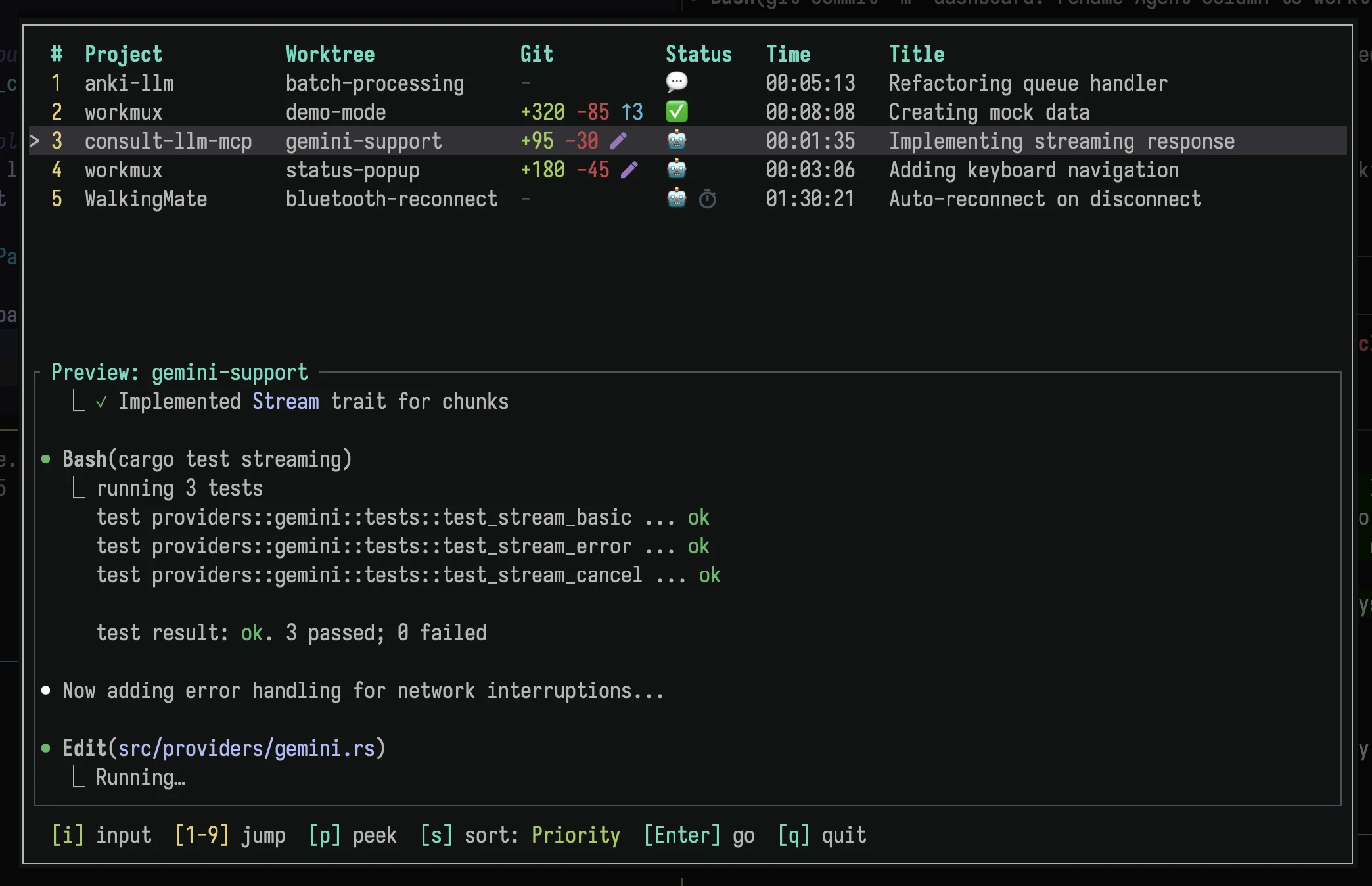
Opens a TUI dashboard showing all active AI agents across all tmux sessions. Useful for monitoring multiple parallel agents and quickly jumping between them.
Options
-d, --diff: Open the diff view directly for the current worktree. Useful when you want to quickly review uncommitted changes without navigating through the agent list.-P, --preview-size <10-90>: Set preview pane size as percentage (larger = more preview, less table). Default: 60.-s, --session: Filter to only show agents in the current session. Useful for session-per-project workflows where each session maps to a different repository.-t, --tab <agents|worktrees>: Open directly on the specified tab.
Important
This feature requires agent status tracking to be configured. Without it, no agents will appear in the dashboard.
Keybindings
| Key | Action |
|---|---|
1-9 |
Quick jump to agent (closes dashboard) |
Tab |
Toggle between current and last agent |
d |
View diff (opens WIP view) |
o |
Open PR in browser |
p |
Peek at agent (dashboard stays open) |
s |
Cycle sort mode |
/ |
Filter agents by name |
F |
Toggle session filter |
f |
Toggle stale filter (show/hide stale) |
i |
Enter input mode (type to agent) |
Ctrl+u |
Scroll preview up |
Ctrl+d |
Scroll preview down |
+/- |
Resize preview pane |
Enter |
Go to selected agent (closes dashboard) |
j/k |
Navigate up/down |
: |
Open command palette |
q |
Quit |
Mouse controls
The dashboard captures mouse input while it is open. Click the Agents and
Worktrees tabs to switch views, click a table row to select it, and
double-click a row to jump to its agent or worktree. Right-click a row to open
its action menu, then click an action or use j/k and Enter. Click a footer
command to run it. Use the mouse wheel over a table to change the selection
without wrapping, or over the live preview to scroll its output.
In diff view, use the wheel to scroll and click a file in the sidebar to jump to its diff. Visible diff and patch footer commands are clickable. Mouse capture is released when the dashboard exits.
Live preview
The bottom half shows a live preview of the selected agent's terminal output.
The preview auto-scrolls to show the latest output, but you can scroll through
history with Ctrl+u/Ctrl+d. Press i to enter input mode and type directly
to the agent without leaving the dashboard.
Columns
- #: Quick jump key (1-9)
- Project: Project name (from
__worktreespath or directory name) - Agent: Worktree/window name
- Git: Diff stats showing branch changes (dim) and uncommitted changes (bright). Shows a rebase icon when a rebase is in progress.
- Status: Agent status icon (🤖 working, 💬 waiting, ✅ done, or "stale")
- Time: Time since last status change
- Title: Claude Code session title (auto-generated summary)
Sort modes
Press s to cycle through sort modes:
- Priority (default): Waiting > Done > Working > Stale
- Project: Group by project name, then by priority within each project
- Recency: Most recently updated first
- Natural: Original tmux order (by pane creation)
Your sort preference persists in the tmux session.
Session filter
Press F to toggle the session filter. When active, only agents in the current
session are shown. This is useful for session-per-project workflows where each
session maps to a repository. You can also start the dashboard with --session
to default to session filtering. The preference persists across sessions.
Name filter
Press / to activate the name filter. Type to filter the agent list by project
or worktree name (case-insensitive). Press Enter to accept the filter and
return to normal navigation, or Esc to clear the filter. When a filter is
active, it is shown in the footer bar.
Stale filter
Press f to toggle between showing all agents or hiding stale ones. The filter
state persists across dashboard sessions within the same tmux server.
Diff view
Press d to view the diff for the selected agent. The diff view has two modes:
- WIP - Shows uncommitted changes (
git diff HEAD) - review - Shows all changes on the branch vs main (
git diff main...HEAD)
Press Tab to toggle between modes. The footer displays which mode is active
along with diff statistics showing lines added (+) and removed (-).
| Key | Action |
|---|---|
Tab |
Toggle WIP / review |
a |
Enter patch mode (WIP only) |
j/k |
Scroll down/up |
Ctrl+d |
Page down |
Ctrl+u |
Page up |
c |
Send commit command to agent |
m |
Trigger merge and exit dashboard |
: |
Open command palette |
q/Esc |
Close diff view |
Patch mode
Patch mode (a from WIP diff) allows staging individual hunks like
git add -p. This is useful for selectively staging parts of an agent's work.
When delta is installed, hunks are rendered with syntax highlighting for better readability.
| Key | Action |
|---|---|
y |
Stage current hunk |
n |
Skip current hunk |
u |
Undo last staged hunk |
s |
Split hunk (if splittable) |
o |
Comment on hunk (sends to agent) |
j/k |
Navigate to next/previous hunk |
: |
Open command palette |
q/Esc |
Exit patch mode |
Press y to stage the current hunk and advance to the next. Press n to skip
without staging. The counter in the header shows your progress (e.g., [3/10]).
Press s to split the current hunk into smaller pieces when there are context
lines between separate changes. Press u to undo the last staged hunk.
Press o to comment on the current hunk. This sends a message to the agent
including the file path, line number, the diff hunk as context, and your
comment. Useful for giving feedback like "This function should handle the error
case".
Example tmux binding
Add to your ~/.tmux.conf for quick access:
bind C-s display-popup -h 30 -w 100 -E "workmux dashboard"

# Open directly on Worktrees tab
bind C-w display-popup -h 30 -w 100 -E "workmux dashboard --tab worktrees"
Then press prefix + Ctrl-s to open the dashboard as a tmux popup.
workmux sidebar
Toggles a live agent status sidebar on the left or top edge of all tmux
windows. By default, each sidebar pane shows active agents across all tmux
sessions with live status updates, providing an always-visible overview without
taking over the full screen like the dashboard. Use workmux sidebar filter session
to show only agents in the current tmux session.
workmux sidebar                       # Toggle sidebar on/off (all sessions)
workmux sidebar on                    # Ensure the global sidebar is running
workmux sidebar off                   # Ensure the global sidebar is stopped
workmux sidebar --session on          # Ensure it is running in this session
workmux sidebar --session off         # Ensure it is stopped in this session
workmux sidebar on --position top     # Enable with a top sidebar
The sidebar displays:
- Status icon (working/waiting/done with spinner animation)
- Project and worktree name (e.g.
myproject/fix-bug) - Elapsed time since last status change
| Key | Action |
|---|---|
j/k |
Navigate up/down |
Enter |
Run configured action |
o |
Focus the agent pane |
g/G |
Jump to first/last |
v |
Toggle layout mode |
f |
Toggle session filter |
q |
Open quit confirmation |
With tmux mouse mode enabled (set -g mouse on), click an agent row or top-bar
chip to jump to its pane, or scroll to navigate the list.
When the global sidebar is active, workmux sidebar --session hides it in the
current tmux session only. Run the same command again to show it in that session
again while keeping the global sidebar active elsewhere.
Configure placement, width, and layout in .workmux.yaml:
sidebar:
  position: left # "left" (default) or "top"
  width: 40 # left width in columns, or "15%" for percentage
  layout: tiles # left only: "compact" or "tiles" (default)
  enter_action: focus # "focus" (default) or "select"
Set enter_action: select to show an agent's window while keeping focus in its
sidebar. Press o to focus the selected agent pane.
The left sidebar defaults to 10% of terminal width, clamped between 25 and 50 columns. Widths above 80 columns use the default width so tmux pane expansion recovers automatically.
Use workmux sidebar on --position top or --position left to override the
configured placement when enabling the sidebar. The on action also accepts
--width and --height. The off action rejects appearance flags because they
have no effect while stopping the sidebar.
Example tmux binding
bind C-t run-shell "workmux sidebar"
Then press prefix + Ctrl-t to toggle the sidebar.
Note: The sidebar is currently tmux-only. When enabled, a sidebar pane is created in every existing window, and new windows automatically get one via a tmux hook.
workmux reap-agents
Shows tracked agent processes whose last state update is older than a threshold. By default this is a dry run, though it still reconciles workmux state while checking live panes.
workmux reap-agents
workmux reap-agents --hours 48
workmux reap-agents --hours 24 --force
Use --force to interrupt matching agents and remove their workmux agent state
after they exit.
workmux sandbox
Commands for managing sandbox functionality. See the sandbox guide for full documentation.
| Command | Description |
|---|---|
sandbox pull |
Pull the latest container image from the registry |
sandbox build |
Build the container image locally |
sandbox shell |
Start an interactive shell inside a sandbox |
sandbox agent |
Run the configured agent in a sandbox with RPC support |
sandbox stop |
Stop running Lima VMs |
sandbox prune |
Delete unused Lima VMs to reclaim disk space |
sandbox install-dev |
Cross-compile and install workmux into sandboxes (dev) |
workmux claude prune
Removes stale entries from Claude config (~/.claude.json) that point to
deleted worktree directories. When you run Claude Code in worktrees, it stores
per-worktree settings in that file. Over time, as worktrees are merged or
deleted, it can accumulate entries for paths that no longer exist.
What happens
- Scans
~/.claude.jsonfor entries pointing to non-existent directories - Creates a backup at
~/.claude.json.bakbefore making changes - Removes all stale entries
- Reports the number of entries cleaned up
Safety
- Only removes entries for absolute paths that don't exist
- Creates a backup before modifying the file
- Preserves all valid entries and relative paths
Examples
# Clean up stale Claude Code entries
workmux claude prune
Example output
  - Removing: /Users/user/project__worktrees/old-feature

✓ Created backup at ~/.claude.json.bak
✓ Removed 3 stale entries from ~/.claude.json
workmux completions <shell>
Generates shell completion script for the specified shell. Completions provide tab-completion for commands and dynamic branch name suggestions.
<shell>: Shell type:bash,zsh, orfish.
Examples
# Generate completions for zsh
workmux completions zsh
See the Shell Completions section for installation instructions.
workmux docs
Displays this README with terminal formatting. Useful for quick reference without leaving the terminal.
When run interactively, renders markdown with colors and uses a pager (less).
When piped (e.g., to an LLM), outputs raw markdown for clean context.
Using with AI agents
You can ask an agent to read the docs and configure workmux for you:
> run `workmux docs` and configure workmux so that on the left pane
  there is claude as agent, and on the right side neovim and empty
  shell on top of each other

⏺ Bash(workmux docs)
  ⎿  <p align="center">
       <picture>
     … +923 lines

⏺ Write(.workmux.yaml)
  ⎿  Wrote 9 lines to .workmux.yaml

⏺ Created .workmux.yaml with the layout:
  - Left: claude agent (focused)
  - Right top: neovim
  - Right bottom: empty shell
Agent status tracking
Workmux can display the status of the agent in your tmux window list, giving you at-a-glance visibility into what the agent in each window doing.

Key
- 🤖 = agent is working
- 💬 = agent is waiting for user input
- ✅ = agent finished (auto-clears on window focus)
| Agent | Status |
|---|---|
| Claude Code | ✅ Supported |
| OpenCode | ✅ Supported |
| Codex | ✅ Supported |
| Copilot CLI | ✅ Supported* |
| Pi | ✅ Supported* |
| Oh My Pi | ✅ Supported |
| Gemini CLI | ✅ Supported |
| Grok | ✅ Supported |
Antigravity CLI (agy) |
✅ Supported* |
| Kiro | Tracking issue |
| Mistral Vibe | Tracking issue |
Notes:
- Copilot CLI: No 💬 waiting state
- Pi: No 💬 waiting state
- Antigravity CLI (
agy): No 💬 waiting state - Kiro: Hooks support is messy: requires a custom agent since the default can't be edited
Setup
Run workmux setup to automatically detect Claude Code, Antigravity CLI,
Copilot CLI, OpenCode, Pi, Oh My Pi, Grok, and other supported agent CLIs, install
status tracking hooks, and install skills:
workmux setup
You can also run specific parts: workmux setup --hooks or
workmux setup --skills. For Claude Code, CLAUDE_CONFIG_DIR is respected for
both hook and skill installation.
Workmux will also prompt you on first run if it detects an agent without status tracking or skills configured.
Workmux automatically modifies your tmux window-status-format to display the
status icons. This happens once per session and only affects the current tmux
session (not your global config).
Manual setup
If you prefer manual setup:
Claude Code: install the workmux status plugin:
claude plugin marketplace add raine/workmux
claude plugin install workmux-status
Or manually add the hooks to ~/.claude/settings.json. See
.claude-plugin/plugin.json for the hook
configuration.
Copilot CLI: with Copilot CLI 0.0.422 or later, install the personal hook:
mkdir -p ~/.copilot/hooks
curl -o ~/.copilot/hooks/workmux-status.json \
  https://raw.githubusercontent.com/raine/workmux/main/resources/copilot/hooks/workmux-status/hooks.json
Copilot loads personal hooks in every repository. If the repository contains a
.github/hooks/workmux-status installation, remove that directory to avoid
running both copies of the hook. The waiting state is not supported due to
limitations in the Copilot CLI hooks implementation.
Antigravity CLI (agy): workmux setup installs lifecycle hooks in
~/.gemini/config/hooks.json. PreInvocation marks the pane working, and the
terminal Stop event marks it done.
OpenCode: run workmux setup --hooks. For manual installation, see the
OpenCode setup guide.
V2 status tracking requires the terminal UI; headless opencode run is not tracked.
{
  "name": "workmux",
  "owner": {
    "name": "raine",
    "email": "raine.virta@gmail.com"
  },
  "metadata": {
    "description": "Plugins for workmux - git worktrees and tmux workflow tool"
  },
  "plugins": [
    {
      "name": "workmux-status",
      "source": "./",
      "description": "Display Claude agent status (working/waiting) in tmux window names"
    }
  ]
}
Facts
- Kind
- Marketplace
- Repo
- raine/workmux
- Group
- Uncategorized
- Stars
- 3.1k
- Marketplace name
- workmux
- Owner
- raine
- License
- MIT
- Language
- Rust
- Created
- 2025-11-04
- Last push
- 2026-11-21
- Forks
- 304
- Homepage
- workmux.dev
- Plugins
- 1
Next on this shelf
- 70cocoindex-io/cocoindex-codecocoindex-io/cocoindex-codeA super light-weight embedded code search engine CLI (AST based) that just works - improves speed and efficiency for coding agent 🌟 Star if you like it!3k
- 71rohitg00/pro-workflowrohitg00/pro-workflowClaude Code learns from your corrections: self-correcting memory that compounds over 50+ sessions. Context engineering, parallel worktrees, agent teams, and 17 battle-tested skills.3k
- 72EvanBacon/serve-simEvanBacon/serve-simThe `npx serve` of Apple Simulators.3k
- 73letta-ai/claude-subconsciousletta-ai/claude-subconsciousGive Claude Code a subconscious2.9k
- 74wondelai/skillswondelai/skillsWondel.ai Agent Skills — Business, Marketing, UX & Coding Frameworks from Bestselling Books. 50 skills + 12 guided journeys for Claude Code, Codex, Cursor & other agentskills.io agents.2.8k
- 75stellarlinkco/myclaudestellarlinkco/myclaudeMulti-agent orchestration workflow (Claude Code Codex Gemini OpenCode)2.8k


